View & Update Insurance Information
-
Step 1
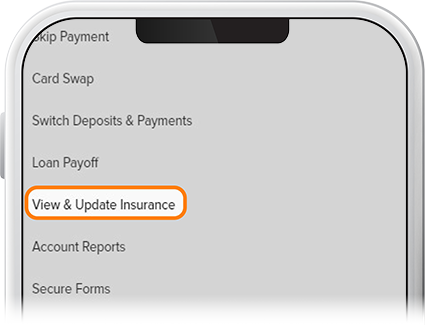
Tap Menu, then scroll to the More drop-down and select View & Update Insurance.
-
Step 2
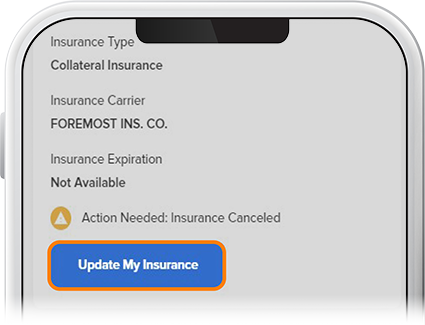
Your insurance status will be shown here. If you need to update your insurance, tap Update My Insurance. (Note: We also have a handy insurance quote tool here to help you get started.) If you're properly insured, no action will be required.
-
Step 3
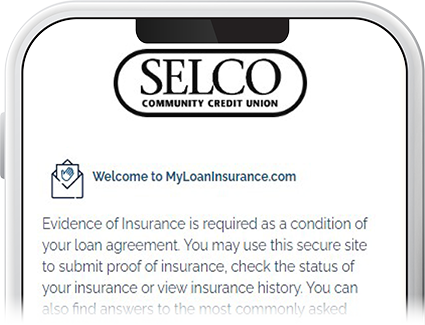
To update your insurance, you'll be sent to an external portal, at which you'll log in to enter your information and upload insurance documentation.