Reset User Password
A Business Admin or another user who has been granted related management permissions in their assigned role may assist users who cannot remember their password.
-
Step 1
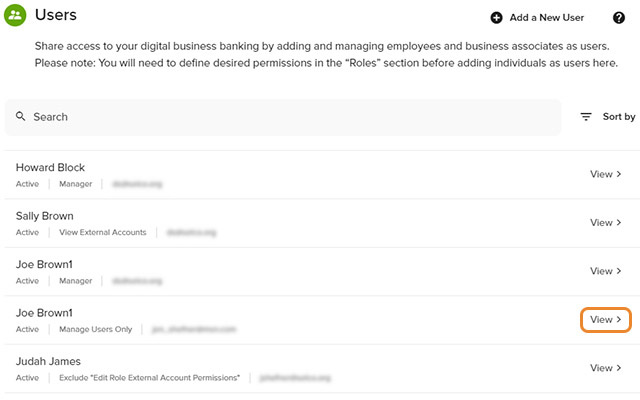
Click Manage Users, Users in the left navigation, then View next to the user's name for whom you want to change a password.
-
Step 2
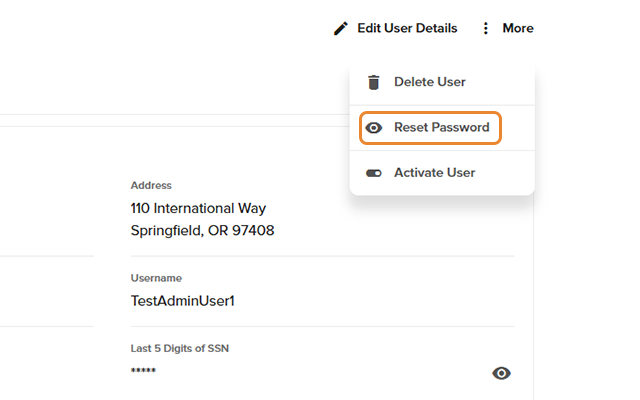
Click More, then select Reset Password.
-
Step 3
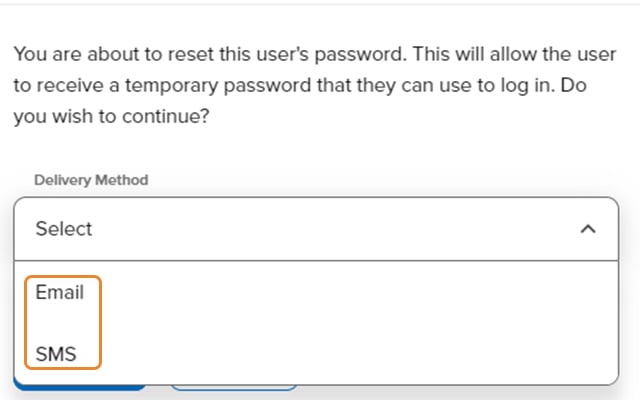
Select the delivery method (email or text) to send a temporary password to the user. This will allow the user to log in and create a new password.