Add A New User
This role allows a user to add new users if "View Users and Roles" and "Assign Roles" permissions are both granted and if the existing role is available or the user also has "Create Roles" permissions. To learn more about the prerequisites to create a user and for definitions of the permissions, please refer to the Business Digital Banking Manage Users Guide (digital banking login required).
-
Step 1
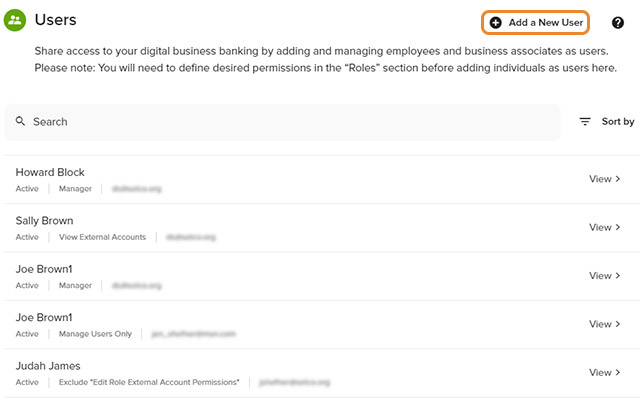
Click Manage Users. , then select Add a New User in the upper right.
-
Step 2
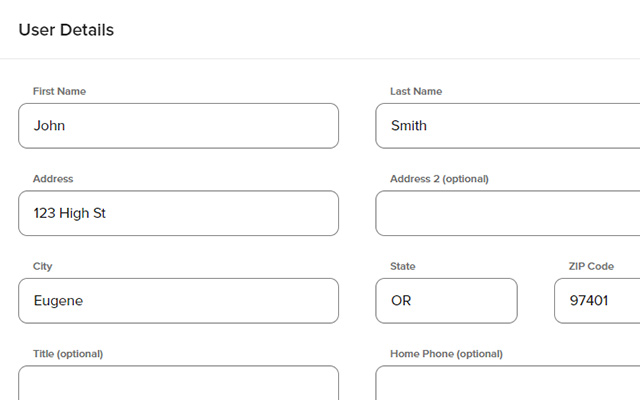
Fill out the user details and click Continue.
-
Step 3
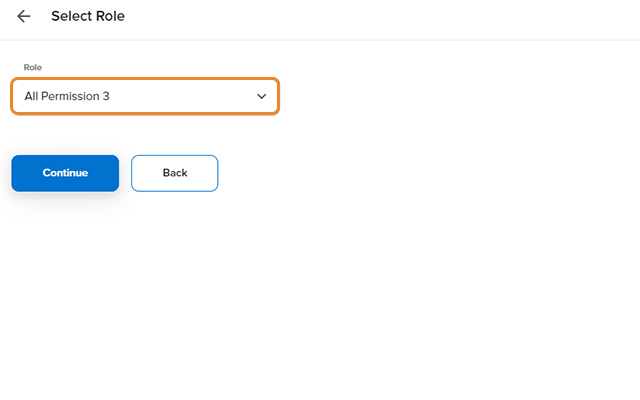
Assign a role for the new user and click Continue. If the appropriate role hasn't been created, click Create a New Role to add one.
-
Step 4
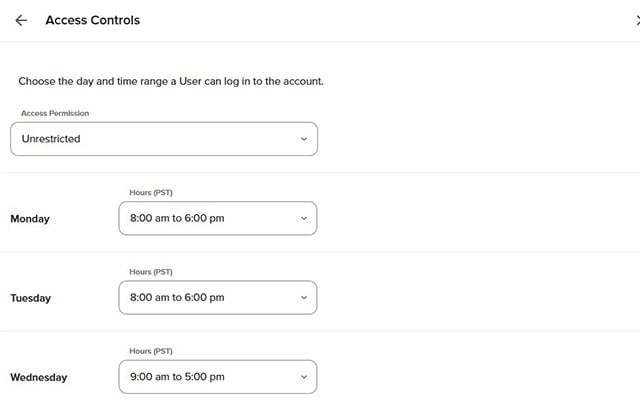
Designate the times and dates the user can access digital banking and click Continue.
-
Step 5
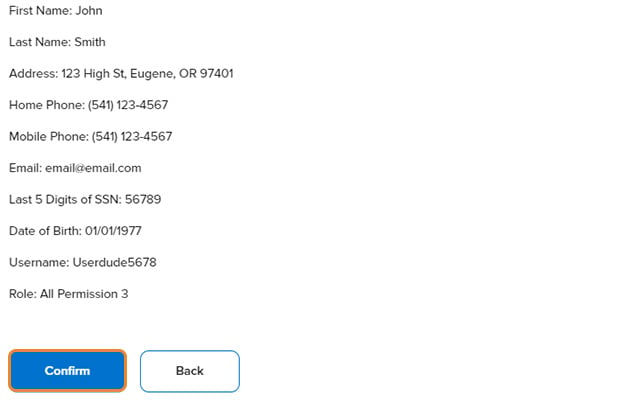
Review the new user's information and click Confirm.
-
Step 6
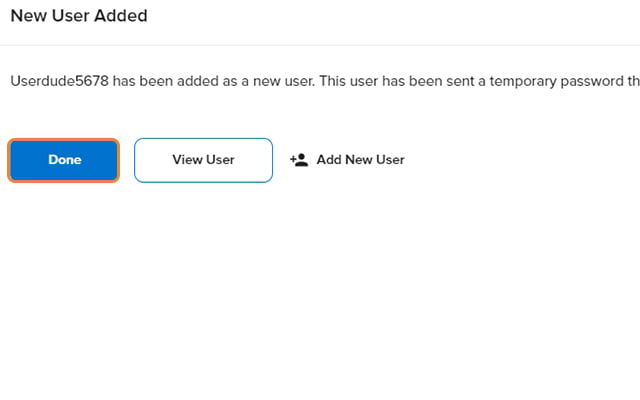
Select Done to complete the process. The new user will be emailed a temporary password, and they will want to commit their username to memory.