Phishing alert: We’ve received reports of SELCO impersonators calling members about fraudulent transactions. As a reminder, SELCO will never contact you requesting sensitive information, including card numbers or login credentials. If you receive one of these calls, please hang up immediately.

SELCO branches and contact centers will be closed Monday, October 12 in observance of Indigenous Peoples’ Day. Account access and support will still be available through digital banking and our virtual phone assistant.

Reset User Password

A Business Admin or another user who has been granted related management permissions in their assigned role may assist users who cannot remember their password.


  1. Step 1

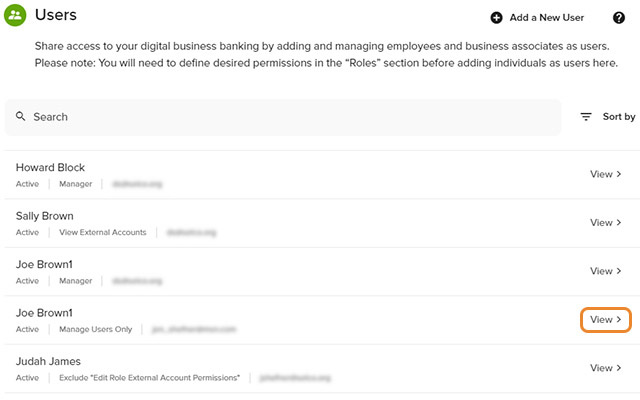
    Click Manage Users, Users in the left navigation, then View next to the user's name for whom you want to change a password.
  2. Step 2

    Click More, then select Reset Password.
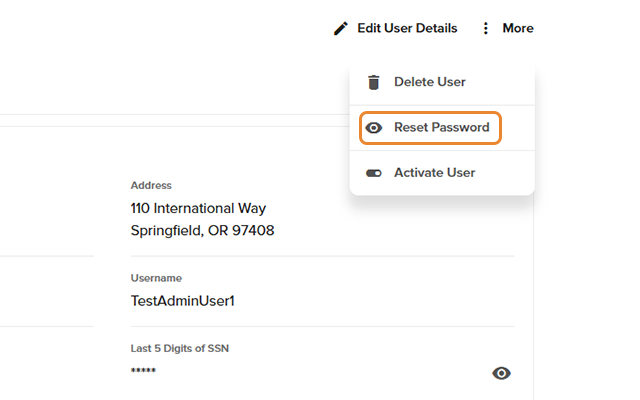
    Reset User Password - Step 2
  3. Step 3

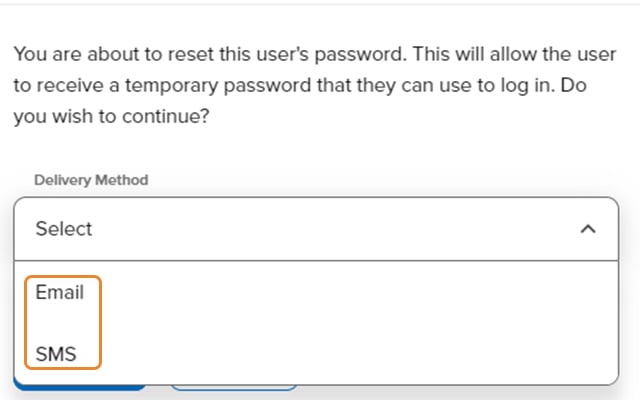
    Select the delivery method (email or text) to send a temporary password to the user. This will allow the user to log in and create a new password.