Deactivate/Activate A User
When an employee is on extended leave and/or should not be accessing the account for other reasons for a period of time, they can be deactivated from your digital banking. To learn more about the prerequisites for deactivating and activating a user, please refer to the Business Digital Banking Manage Users Guide (digital banking login required).
-
Step 1
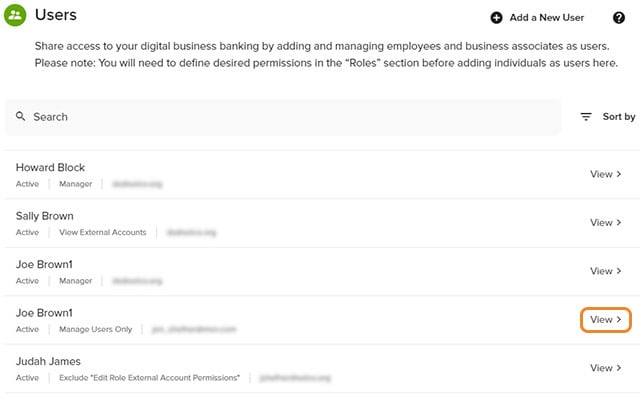
Click Manage Users, Users in the left navigation, then View next to the user's name you wish to deactivate or re-activate.
-
Step 2
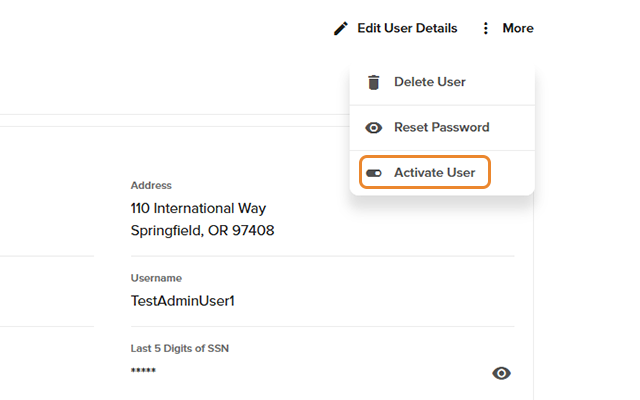
Click More, then select Deactivate User or Activate User, then click Yes to confirm.